Your VPN is off, but an app keeps telling you to disable it. You check the connection, reopen the app, and get exactly the same warning. What else are you supposed to turn off?
Sometimes another tool on your phone is using Android’s VPN interface. Sometimes the service is flagging your internet connection. The warning alone cannot tell you which, but a few checks can help you find out.
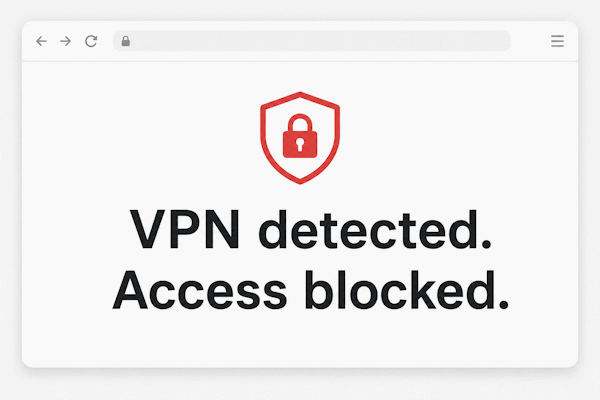
Some Android ad blockers, firewalls and DNS tools use a local VPN to filter traffic on your phone. You might have installed one simply to block ads, then forgotten about the VPN permission it requested during setup.
These tools can use Android’s VPN interface without sending your browsing through a remote VPN server or changing your public IP address. Your regular VPN may be disconnected while a local filtering tool is still active.
An app that checks for a VPN connection may pick up that local filter and refuse to continue. In that case, the warning is detecting something real, but it does not explain what kind of VPN connection it found.
A service can also judge your connection by its public IP address. That address may be shared with other customers of your mobile or broadband provider through carrier-grade NAT. You do not need to be using a VPN for this to happen.
Sharing an address means other people’s traffic can affect how websites treat your connection. Cloudflare describes how IP-based restrictions can catch legitimate users on these networks. An incorrect classification is therefore one possibility when a service keeps showing a VPN warning on an ordinary connection.
The message does not prove that your IP was previously flagged. But if the service is objecting to your regular IP address, pressing Disconnect in your VPN app again will not help.
Android’s Private DNS setting protects DNS lookups - the requests your phone makes to find websites. It does not, by itself, change your public IP address or route your browsing through a VPN server.
A separate DNS app may use a VPN profile, which is where the confusion can start. Check whether you configured Private DNS in Android’s settings or installed an app that manages DNS through the VPN interface.
There is no reason to switch off Private DNS just because a warning mentions a VPN. Google recommends keeping it enabled. Check for an active VPN connection first, before changing settings that may have nothing to do with the problem.
1. See which VPN Android shows as active
Open Settings → Network & internet → VPN, or search Settings for “VPN.” Look for a connected status and the name of the app behind it. A saved profile is not an active connection. Google’s Android VPN guide explains where to find and manage these settings.
2. Try mobile data instead of your home Wi-Fi
Leave your other settings unchanged and test the same action. If it works on mobile data, the difference between the networks is worth investigating. It is a clue, rather than proof that your Wi-Fi IP has been blocked.
3. Close and reopen the affected app
Do this after changing connections, then try again. If the service has a website, check that too. A website that works while its app refuses to open gives you something more specific to investigate than a generic VPN warning.
If an app needs your regular connection, you should not have to disconnect the VPN for everything else each time you open it. Split Tunneling in Trust.Zone V2 lets you choose which applications use the VPN and which connect directly. You can keep your browser on the VPN while giving another app direct access.
For individual websites, Smart Tunneling adds website rules. One site can use your regular connection while another goes through Trust.Zone, even in the same browser. Sites set to connect directly will see your regular public IP address.
These settings control where traffic goes; they do not hide an active VPN from Android. An app that rejects any VPN connection may still show a warning. But when a service simply needs a direct connection, you can set that rule once and keep VPN protection for the apps and websites you want.